Review the number
Show a masked number first

Confirm your device number, review and agree to the relevant terms, then tap to sign in. On a supported, successful one-tap journey, there is no need to type a phone number or SMS code.
Verification follows consent. Keep SMS login available if unsupported or unsuccessful.
Bring number confirmation, clear consent and sign-in into one focused entry. Users review and choose first; a successful one-tap journey avoids looking up an SMS code.
On a supported and successful one-tap journey, there is no need to manually enter a phone number or SMS code.
A successful one-tap journey does not require the user to open SMS, find a code or copy it. The sign-in action stays in the App.
Show a masked number first so users can confirm the account and give consent before number verification continues.
When users want another number, the network is unsupported or verification fails, keep integrated alternatives such as SMS-code login available.
Review the user terms, privacy policy and carrier verification information, then choose whether to agree.
The server must process the authentication result and complete account login. Do not create a session solely from client-side return values; follow the integration requirements.
Bring number confirmation, clear consent and sign-in into one focused entry. Users review and choose first; a successful one-tap journey avoids looking up an SMS code.
Review the masked number and confirm it is the account you want. On dual-SIM devices, check which SIM is used for mobile data.
Review the user terms, privacy policy and carrier verification information, then choose whether to agree.
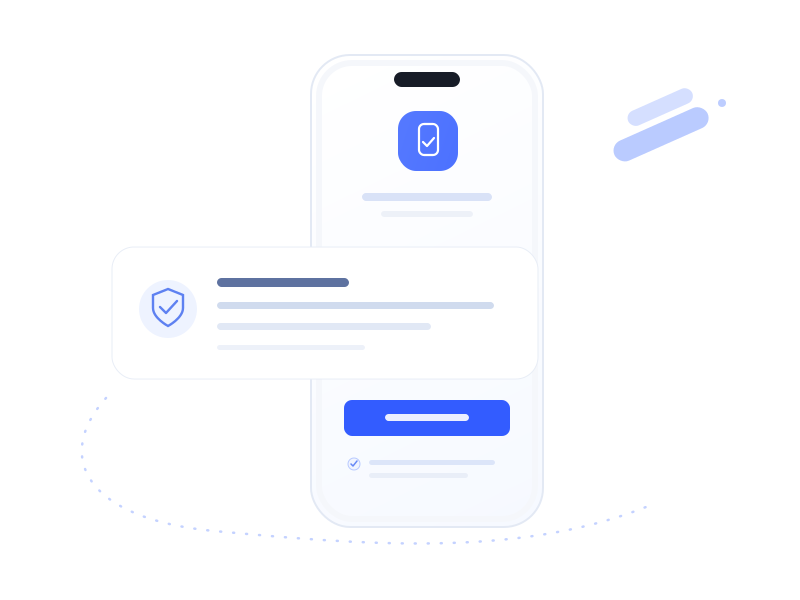
This local interface demonstration does not connect to a real verification service. Choices affect only the demonstration state on this page.
It does not read, enter or send a phone number, or establish a real signed-in session.
Continue with your device number
Fictional example · not a detected number
This shows where agreements appear, not actual service terms. Checking the box changes only this local demo; it grants no legal consent and starts no verification. A real App must show current agreements.
A real App can offer SMS login: enter another number, receive a code and verify it. This demo has no number field or sending function.
Local demo: no number is read, entered or sent.
One-tap login simplifies input. Number confirmation, user consent and background verification still take place.
Review the masked number and confirm it is the account you want. On dual-SIM devices, check which SIM is used for mobile data.
Review the user terms, privacy policy and carrier verification information, then choose whether to agree.
Start number verification. On success, your application continues account login; otherwise, users can choose an alternative such as SMS.
All panels are static concepts. Numbers and codes are fictional placeholders.
This comparison does not imply completion times. One-tap login still requires consent and background verification; availability depends on networks, devices and SDK compatibility.
For integration discussions. Your application handles account creation, matching and sessions; interfaces and SDK versions depend on the agreed scope.
The client SDK handles environment checks and authorization, fitting into the app’s visual design and login entry point while handling cancellation, failures and switching login methods.
The server must process the authentication result and complete account login. Do not create a session solely from client-side return values; follow the integration requirements.
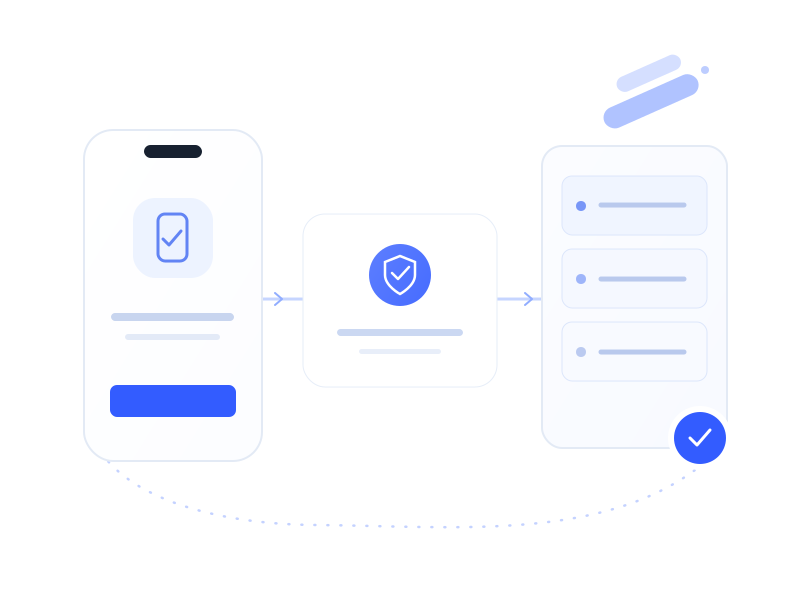
Reduce number-entry steps on a first visit while keeping the necessary agreements, privacy information and confirmation.
FIRST APP VISIT
Welcome aboard
Start with your device number
After consent and successful verification, the App creates the account
Connect the device’s number to an existing account for a smoother return under supported conditions.
RETURNING TO THE APP
Welcome back
Example user · existing account
After consent and successful verification, the App signs in the existing account
Use number verification when an action requires confirmation of the current number. Retain additional checks according to business risk; do not use it as the sole check for high-risk actions.
EDITING A PROFILE
Confirm this update
Confirm your current number
After consent and successful verification, return to the App action
Illustrative use cases. Phone-number verification is not real-identity verification. Evaluate high-risk actions alongside other security measures.
Integrate the SDK in your App and connect the server to your existing account system. Confirm availability, then test consent, number switching and fallback together.
The available materials do not establish support for H5 or mini programs.
Confirm actual devices, carrier networks and SDK versions. Availability depends on the environment.
Dual-SIM verification uses the current mobile-data SIM number. To use another number, switch the data SIM or choose another sign-in method, such as SMS verification.
Supported systems, SDK versions and networks are subject to the confirmed integration scope.

Keep “Use another number” available and connect it to SMS-code login. Configure and test fallback with the existing flow; seamless recovery cannot be assumed for every failure.
Show the masked number and current agreements, and start verification after explicit consent. The documented SDK does not need SMS-reading permission; verify current permissions and data handling for the actual version.
For integration discussions. Your application handles account creation, matching and sessions; interfaces and SDK versions depend on the agreed scope.
One-tap login uses carrier verification for the current mobile-data SIM number. The App presents a masked number and authorization information, then obtains a token after consent. Your server verifies the token through the authentication service, retrieves the number and handles login or registration.

Initialize · check environment · show authorization
Receive token · request verification · manage account
Validate token · confirm number · return result
Your server submits the token to the verification service, then connects the returned number to your account system. The illustration shows roles, not server counts or deployment requirements.
Initialize the SDK and check whether the current network supports verification. Define a fallback for unsupported environments during integration.
Prepare number prefetching and show a masked number, verification information and related agreements for the user to review.
After user consent, the SDK obtains a verification token, returns it to the App and passes it to the business server.
The business server validates the token through the verification service, retrieves the number and continues account matching, login or registration.
The client SDK handles environment checks and authorization, fitting into the app’s visual design and login entry point while handling cancellation, failures and switching login methods.
The server must process the authentication result and complete account login. Do not create a session solely from client-side return values; follow the integration requirements.
Supported carriers, devices, networks and SDK versions depend on the agreed integration. Keep an alternative login method available.
Integration checklist: test success, cancellation, unsupported networks and verification failures. Implement error handling against the actual SDK documentation.
One-tap login verifies the current mobile-data SIM number through carrier capabilities and continues after user consent, reducing number entry, SMS waiting and manual code entry. SMS verification remains an alternative or fallback.
Verification uses the current mobile-data SIM number. To use another number, switch the data SIM or choose another method such as SMS verification. Include SIM switching in integration tests.
The documented App SDK approach does not require SMS access permission. Confirm permissions and data processing for the current SDK version and provide the appropriate disclosures in your App.
Connect an SMS-code fallback and configure and test unsupported environments, verification failures and user-selected alternatives. Fallback must be integrated rather than assumed to work automatically.
The current materials describe an App SDK and do not establish H5 or mini-program support. Confirm carriers, devices, system versions and network requirements before integration and test against your target users’ environments.
Timing and pricing depend on the client, server, existing account flow and expected verification volume. Agree on the scope before confirming the plan, quote, delivery schedule and billing terms.
Share your App platforms, existing sign-in methods and expected verification volume to define availability, integration steps and SMS fallback.